The Wi-Fi 7 router buying guide you’ve been waiting for is here. In 2026, the 802.11be standard has moved from buzzword to practical upgrade, but choosing the right model and configuring it well still decides whether you feel the leap in speed and responsiveness at home. This Wi-Fi 7 router buying guide walks you through what actually matters, what’s marketing, how to compare models, when to choose mesh, and how to set up and maintain a fast, stable, and secure network without overspending.
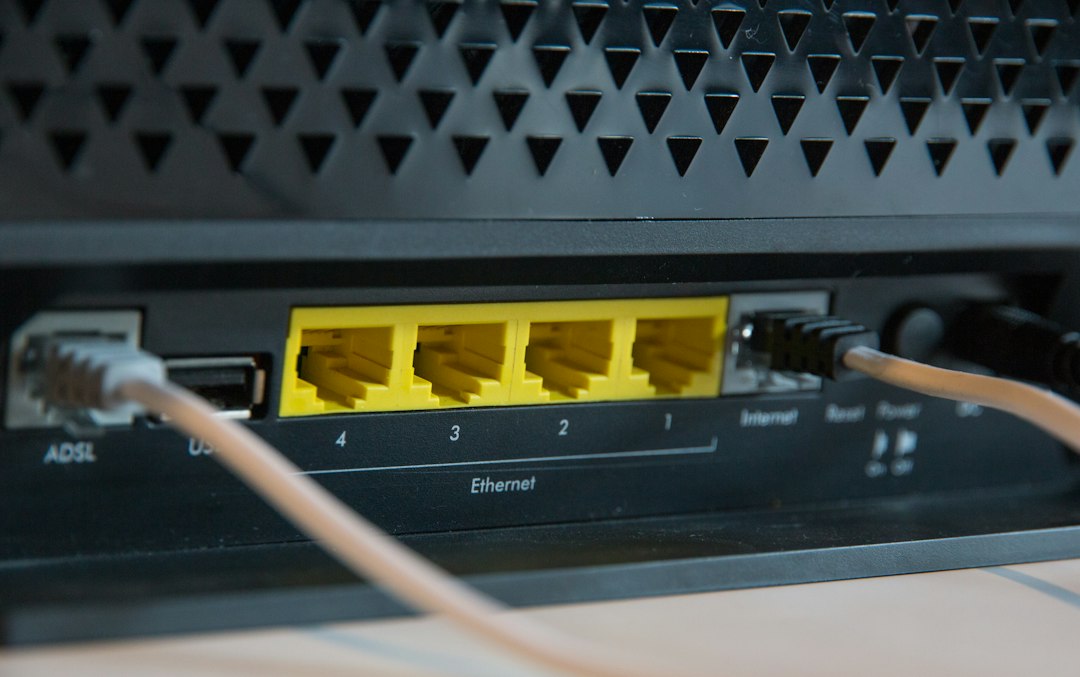
What Wi‑Fi 7 really changes for everyday homes
Wi‑Fi 7 (802.11be) builds on Wi‑Fi 6/6E by increasing peak data rates, lowering latency, and making the network more flexible under real‑world interference. The headline specs—320 MHz channel width, 4K‑QAM, and Multi‑Link Operation—sound abstract, but they map to outcomes you can feel: quicker file copies, snappier video calls when others are streaming, more consistent gaming pings, and less buffering when you move around the house. The jump is most obvious if you already have modern client devices (new phones, laptops, and streaming boxes) and a decent Internet plan (500 Mbps to multi‑gig). If your devices are older or your plan is well under 300 Mbps, you’ll still benefit from Wi‑Fi 7’s efficiency and capacity, though the speed headlines won’t fully materialize until your clients catch up.
Another practical shift is spectrum. Wi‑Fi 7 continues to use 2.4 GHz and 5 GHz, and—where available—6 GHz. The 6 GHz band has more contiguous spectrum with less legacy interference, which allows wider channels and steadier performance in dense neighborhoods or apartments. Even if some of your devices stay on 5 GHz or 2.4 GHz, a Wi‑Fi 7 network can juggle those bands more intelligently so legacy gear doesn’t drag down the entire network.
Finally, latency handling gets better. Features like MLO can send data across two bands at once, smoothing out momentary dips that happen when a neighbor turns on a microwave, a baby monitor chirps, or you walk behind a wall. In practice, this means fewer micro‑stutters during calls and online games, the kinds of issues that don’t show up in a speed test but that you notice during real use.
Wi-Fi 7 router buying guide: the key decisions
Before you compare shiny product pages, decide on your constraints and goals. You can avoid overbuying or picking the wrong class of device by answering a short list of questions up front.
- Internet speed today and next 2 years: Are you on 300 Mbps, gigabit, or multi‑gig (2–5 Gbps)? Are upgrades planned?
- Home size and construction: Square footage, floors, materials (plaster, brick, steel, radiant heating) that block signals.
- Device profile: How many phones, laptops, TVs, consoles, and smart home sensors? Any work gear that needs steady, low jitter?
- Wiring reality: Do you have Ethernet to a few rooms? Can you run a cable to where you’d place a mesh node?
- Admin comfort: Do you prefer set‑and‑forget apps or advanced controls (VLANs, DNS customization, selective parental controls)?
These answers funnel you toward one of three tiers: a strong single router for apartments and small homes, a 2‑ to 3‑node mesh for larger spaces or tricky layouts, or a high‑end modular setup with multi‑gig ports and optional wired backhaul for power users or hybrid work households that move lots of local data.
Budget tiers and value sweet spots
Wi‑Fi 7 hardware spans an unusually wide price range in 2026. The good news is you don’t need the flagship to feel a flagship jump, but you also don’t want to undershoot a key capability and regret it later.
- Entry Wi‑Fi 7 single routers (around $150–$250): Good for 1–2 bedroom apartments or small homes. Look for at least 2.5GbE WAN, 1× 2.5GbE LAN or 2–3× 1GbE LAN ports, and basic 2.4/5/6 GHz radios. Skip models that omit 6 GHz; it’s a major reason to go Wi‑Fi 7.
- Midrange mesh kits (around $300–$600 for 2–3 nodes): Best for 2,000–4,000 sq ft homes or multi‑floor layouts. Favor systems with 6 GHz radios dedicated or switchable for backhaul and at least 2.5GbE on each node so you can wire where convenient.
- High‑end and power‑user gear ($600–$1,200+): Adds 10GbE ports, beefier CPUs/RAM for more simultaneous clients, and better thermal design. Worth it if you have multi‑gig Internet, do NAS backups over Wi‑Fi, or need low‑latency headroom while others stream 4K/8K video.
The current value sweet spot for many homes is a midrange 2‑pack mesh with 2.5GbE on each node and flexible 6 GHz backhaul. If you live in a compact space with line‑of‑sight from router to most rooms, a good single router placed well can still beat a cheap mesh.
Single router vs mesh: choosing coverage without guesswork
Mesh is not automatically better than a single router. A single, powerful Wi‑Fi 7 router placed centrally and high—on a shelf, not hidden in a cabinet—often yields stronger, simpler coverage in apartments or smaller homes. Mesh shines when distance or materials block the signal to one or more rooms, or when you need reliable coverage on different floors or across outbuildings.
To choose confidently, map the paths your devices use most: office to living room, living room to bedrooms, bedrooms to backyard. If two or more of those paths pass through multiple walls or floors, or if you routinely see buffering or call hiccups, mesh is likely the cleaner fix. If the signal only struggles in one small corner, a single router plus a wired access point in that corner may be cheaper and faster.
When you do pick mesh, prioritize systems that let you choose backhaul (6 GHz wireless or Ethernet). Wired backhaul is still the gold standard for stability; a single inexpensive cable run to a secondary node is often the difference between mesh that feels magical and mesh that feels like a compromise.
Spectrum, channels, antennas, and what they mean for you
Spectrum terms are easy to drown in, so anchor each one to something practical.
- 2.4 GHz: Long range, low speed, crowded. Keep it around for smart home sensors and slow legacy devices. Avoid placing performance‑critical devices here.
- 5 GHz: The workhorse band for most Wi‑Fi 5/6 devices and many Wi‑Fi 7 clients. Good balance of speed and range, but more susceptible to channel congestion in dense areas.
- 6 GHz: Cleanest air, widest channels, shortest range. Ideal for modern laptops/phones and for mesh backhaul. You’ll get the best Wi‑Fi 7 experience here.
Channel width—20/40/80/160/320 MHz—determines raw throughput potential. Wider isn’t always better in the real world. A 320 MHz channel in 6 GHz can deliver huge bursts, but if your neighbor also tries to claim wide channels you might see dips or re‑tries. Good routers dynamically adjust widths and use preamble puncturing (more below) to salvage clean chunks of spectrum when some sub‑channels are noisy.
As for antennas, more isn’t automatically better; design and radio quality matter. Internal antennas can perform as well as external ones if the radio chain is well‑engineered. What to watch is the number of spatial streams (e.g., 2×2, 4×4) advertised for each band. For most homes, 2×2 on 2.4/5 GHz and 2×2 or 4×4 on 6 GHz is sufficient; a 4×4 6 GHz chain helps mesh backhaul and busy homes with many modern devices.
Ports and wired backhaul: 1G, 2.5G, 10G explained
Wi‑Fi speed headlines are meaningless if your wired ports choke the flow. The baseline in 2026 should be a 2.5GbE WAN port. If your ISP offers multi‑gig service (2–5 Gbps), you’ll saturate a 1G WAN otherwise. On the LAN side, aim for at least one 2.5GbE port for a desktop, NAS, or switch; more is better if you have multiple wired devices or plan to wire mesh nodes.
10GbE is overkill for many homes but fantastic for local transfers (video editing, big photo libraries, game installs from a NAS). If your Internet is below 2 Gbps, 10GbE won’t change downloads, but it can make your home network feel much faster for local work. A hybrid approach—router with 2.5GbE plus a small 10GbE switch where you need it—keeps costs grounded while preserving an upgrade path.
USB ports on routers are mixed in 2026. Some are genuinely fast for plugging in a portable SSD as a simple shared drive, others are bottlenecked by weak controllers. If shared storage matters, a small dedicated NAS box connected over 2.5GbE will be more reliable and flexible.
Inside the box: CPU, memory, firmware, and app quality
Routers are small computers. Underpowered hardware can struggle when dozens of clients connect, when you enable advanced features like VPN, Intrusion detection, or per‑device QoS, or when mesh nodes pass lots of backhaul traffic. Look for modern SoCs with multiple CPU cores and at least 512 MB to 1 GB of RAM on the main router; mesh nodes can be leaner but still benefit from healthy memory.
Firmware matters as much as chips. Vendors that push regular updates and maintain clear changelogs tend to deliver better long‑term stability and security. The companion app should make essentials obvious—naming networks, seeing which devices are on which band, rebooting a node, pausing a device’s Internet—and expose, not hide, useful controls like channel selection, guest network isolation, DNS customization, and traffic priority. If you work from home, being able to prioritize a work laptop or conferencing device is worth more than a speed test trophy screenshot.
Wi‑Fi 7 features decoded: MLO, 320 MHz, 4K‑QAM, puncturing
Wi‑Fi 7’s feature set has a lot of acronyms. This is the plain‑English version.
- Multi‑Link Operation (MLO): Lets a device use two bands at once (for example, 5 GHz and 6 GHz) or quickly steer traffic between them. In practice, this makes connections more resilient to small bursts of interference and can lower jitter during video calls or games.
- 320 MHz channels: Doubles the maximum channel width from Wi‑Fi 6/6E’s 160 MHz, available in 6 GHz. Delivers big throughput peaks for supported clients, great for local file transfers and fast app installs.
- 4K‑QAM: A more efficient modulation scheme. Think of it as squeezing more bits into each radio symbol, which improves peak data rates in very clean signal conditions.
- Preamble puncturing: Allows a router to “cut out” a noisy sliver of a channel and still use the remaining clean portion. Instead of abandoning a wide channel because a neighbor pollutes one slice, the router keeps most of it.
When comparing models, confirm that MLO is supported on both client and router, and that 6 GHz is enabled in your region. Also check how the vendor implements band‑steering and whether you can manually split SSIDs if needed for testing or special devices.
Security, privacy, and guest access done right
Start with WPA3‑Personal for your main SSID. Use a strong passphrase, not a memorable dictionary word. For guests, create an isolated guest network limited to Internet access only. That keeps your smart locks, cameras, and computers invisible to guests and reduces accidental mischief. If your router offers per‑device profiles, place untrusted or rarely updated gadgets in a segregated profile and restrict their access to only what they need.
DNS settings are a simple way to gain control. You can point the whole network to a reputable DNS provider that supports malware filtering or use your own local DNS server if you need custom hostnames for a NAS or media server. If you use parental controls, favor transparent, time‑based rules and clear device labels over opaque filters that can block legitimate sites.
On privacy, be mindful of telemetry options in the router app. Many vendors allow you to opt out of sharing usage analytics. It’s reasonable to leave crash reporting on (improves reliability) and turn off marketing analytics. Review the privacy policy during setup and occasionally after major firmware updates.
Smart home and IoT: Matter, Thread, Zigbee, and bandwidth hygiene
Wi‑Fi 7 routers don’t replace low‑power protocols like Thread or Zigbee; they complement them. Many smart sensors and buttons are better on Thread or Zigbee because they sip power and avoid clogging your primary Wi‑Fi bands. If your router or a hub on your network supports Thread border router functionality, you can keep dozens of tiny devices off 2.4 GHz Wi‑Fi and free that band for legacy gear that truly needs it.
Matter support has matured by 2026, but it still relies on a mix of Wi‑Fi, Thread, and bridging devices. Don’t panic if not everything is Wi‑Fi 7 aware. Focus on keeping noisy or chatty devices contained—IP cameras, for instance, should be on a separate VLAN or guest segment if your router supports it, and ideally wired when practical. This keeps multicast traffic from swamping your main wireless network.
Working with your ISP’s modem or gateway
Most ISP‑supplied gateways can be placed in bridge or passthrough mode so your Wi‑Fi 7 router handles routing, firewalling, and DHCP. If your ISP requires VLAN tagging on the WAN, pick a router that exposes this option. For fiber or cable with multi‑gig, confirm the handoff type (RJ45 Ethernet vs SFP/SFP+) and match your router’s WAN port. Some high‑end Wi‑Fi 7 routers include SFP+ cages for 10GbE; otherwise, media converters or ONTs from your provider can bridge to 2.5/10GbE Ethernet cleanly.
If you can’t bridge the ISP gateway, disable its Wi‑Fi radios and put your router in access point mode. You lose some advanced controls, but you avoid double NAT conflicts and odd port‑forwarding behavior. When in doubt, your ISP’s support pages often document the cleanest integration path for third‑party routers.
Setup and optimization checklist (30 minutes to a great baseline)
Use this fast, repeatable process when you unbox your router or mesh kit.
- Placement: Put the primary router high and central. Avoid metal racks, enclosed cabinets, or tucking behind TVs. If you use mesh, place the second node about halfway to the coverage problem area; avoid placing nodes too close together.
- Firmware first: Before connecting many devices, update firmware. Reboot both router and mesh nodes after the update.
- Network names: Use a single SSID for 2.4/5/6 GHz to start. If you troubleshoot later, you can split temporarily.
- WAN settings: Confirm your Internet speed and duplex, enable VLAN tagging if your ISP needs it, and verify you’re getting expected throughput on a wired speed test.
- Security: Set WPA3‑Personal, a strong passphrase, and an isolated guest network. Turn on automatic firmware updates if available.
- Backhaul choice: If mesh, choose Ethernet backhaul where possible; otherwise set 6 GHz as the preferred backhaul band.
- Channel sanity: Leave channels on auto for a week, then inspect. If your area is crowded, manually choose a stable 5 GHz channel and a clean 6 GHz channel. Use preamble puncturing options if exposed.
- Device priority: Assign high priority to your work laptop or conferencing device during business hours. Avoid blanket QoS that throttles everything all the time.
- DNS and services: Set DNS to a provider you trust or your own local resolver. Disable features you don’t use (cloud backup, USB file sharing) to reduce attack surface.
- Test real tasks: Run a video call while someone streams 4K and another downloads a game. Walk around with a phone and watch for hiccups. Adjust node placement if needed.
Troubleshooting: symptoms, quick fixes, and when to rewire
Many Wi‑Fi issues look similar, so diagnose by symptoms:
- Great speeds near router, poor across rooms: Placement or construction issue. Raise the router, rotate it slightly, or add a mesh node. If you already have mesh, move the node closer to halfway between router and weak zone.
- Good Wi‑Fi bars but slow transfers: Could be channel congestion or a 1G wired bottleneck. Check that your WAN is 2.5GbE if your plan is multi‑gig and verify your LAN links negotiate at 2.5/10GbE where expected.
- Random stutters during calls: Enable MLO for supported clients, prioritize the conferencing device, and consider locking it to 6 GHz if it roams too aggressively on 5 GHz.
- One device misbehaves: Forget and re‑join the network, update its drivers/OS, and try a temporary dedicated SSID on 5 or 6 GHz to see where it behaves best.
- Mesh feels slow: If the mesh nodes link wirelessly through multiple walls, try Ethernet backhaul. One inexpensive cable can transform performance and stability.
When small tweaks don’t stick, rewire critical endpoints. A single Ethernet run to a desktop, TV cabinet, or home‑office switch offloads heavy traffic from Wi‑Fi and frees bandwidth for devices that must roam.
Care and maintenance: keep your network fast for years
Networks drift as you add devices and neighbors change theirs. A little routine attention prevents slowdowns from sneaking up on you.
- Quarterly check: Compare today’s wired and wireless speed tests to your baseline. If wireless dipped while wired stayed the same, scan channels and adjust. If wired dipped, talk to your ISP or inspect cabling.
- Update cadence: Apply firmware updates a few weeks after release unless a critical fix is announced sooner. Read the changelog to understand new features and security patches.
- Label and document: Keep a simple note with SSIDs, passphrases, VLANs, and node locations. Future‑you will thank you when troubleshooting.
- Dust and airflow: Routers are small computers; heat throttles performance. Keep vents clear and avoid stacking heat‑generating gear on top.
Future‑proofing without overpaying
It’s tempting to chase the highest spec sheet, but the best way to future‑proof is to choose the right class today and leave room to adapt. If you’re on gigabit Internet with a busy household, buying a router or mesh with 2.5GbE WAN/LAN and 6 GHz support gives you headroom for the next few years. If you already run a NAS or plan to, consider a model with at least one 10GbE port or budget for a small 10GbE switch later. Prioritize open, well‑supported features like MLO and regular firmware updates over exotic options you’ll never use.
Also plan for client upgrades. The full benefit of Wi‑Fi 7 appears when a critical mass of your devices supports 6 GHz and MLO. As you replace laptops and phones, choose models that support those features. Meanwhile, your Wi‑Fi 7 router will still help legacy devices by managing spectrum more intelligently.
Real‑world scenarios and example builds
These example builds show how to assemble parts that fit common homes and budgets. They’re not tied to specific brands so you can mix equivalents.
- Compact apartment, 500–1,000 Mbps ISP: One Wi‑Fi 7 router with 2.5GbE WAN and at least one 2.5GbE LAN port, placed centrally on a shelf. Wire the TV cabinet to a small 2.5GbE switch if you have multiple boxes (streamer, console). Leave channels on auto for a week, then fix a clean 6 GHz channel.
- Two‑story family home, gigabit ISP, many phones: Two‑node Wi‑Fi 7 mesh. Run Ethernet backhaul to the upstairs node if possible; otherwise use 6 GHz backhaul. Prioritize parents’ laptops during working hours and the living room TV in the evening. Keep smart sensors on Thread/Zigbee hubs when you can.
- Power user with 2–5 Gbps, home office, and NAS: High‑end router with 10GbE LAN (for NAS) and 2.5GbE WAN, plus a small 10GbE switch in the office. Wire a mesh node in a far room to eliminate weak spots. Enable MLO on supported clients and preamble puncturing in busy spectrum.
When to upgrade and when to wait
Upgrade now if your current router struggles with stability, can’t keep up with your ISP plan, or lacks 6 GHz and you live in a congested area. The Wi‑Fi 7 generation has matured enough in 2026 that midrange parts deliver excellent value. If your Wi‑Fi 6 or 6E setup is stable, your plan is sub‑gigabit, and you don’t move large files locally, you can wait until your next device refresh aligns with a router upgrade. In that case, focus on placement tweaks and a clean channel plan to stretch your current gear.
Frequently asked questions
Do I need 6 GHz if most of my devices are still on 5 GHz?
Yes, because 6 GHz gives your newest devices a clean fast lane and lets your router balance load across bands. Even if only a few devices use 6 GHz now, moving their traffic off 5 GHz reduces contention for everything else.
Is MLO worth it if only a couple of my devices support it?
It helps most on devices that need low jitter—video calls, game consoles, and certain workstations. As you replace devices, more will benefit. Meanwhile, a Wi‑Fi 7 router’s other features still make your network more efficient.
Will a router with 10GbE make my Internet faster if I’m on 1 Gbps?
No, your Internet will still cap at 1 Gbps. 10GbE helps local transfers to a NAS or between wired devices. If you don’t do heavy local work, prioritize 2.5GbE WAN/LAN first.
How many mesh nodes do I need?
Start with two for most 2,500–3,500 sq ft homes. Add a third only if you have a detached space or a stubborn dead zone after careful placement. Fewer, better‑placed nodes usually outperform many cramped ones.
Helpful resources and staying current
New firmware and client updates can change best practices slightly over time. For news, tips, and device‑level how‑tos, browse our Technology and Gadgets coverage at lj‑life.com/category/technology-and-gadgets/ and keep an eye on vendor release notes for your specific router or mesh kit. A quick read every month can save hours of troubleshooting later.
A quick pre‑purchase checklist you can copy
- My Internet plan today is ____; likely upgrade within 24 months: yes/no.
- Home size/layout: ____ sq ft, floors: ____, walls: plaster/drywall/brick.
- Wiring reality: Ethernet to rooms A/B/C: yes/no; can run one cable: yes/no.
- Priority devices: work laptop, TV, console, NAS, cameras (list).
- Router class I need: single / 2‑node mesh / high‑end with 10GbE.
- Must‑have ports: 2.5GbE WAN required; 2.5GbE LAN count: __; 10GbE: yes/no.
- Features to confirm: 6 GHz enabled in my region, MLO, WPA3, reliable app, frequent firmware updates.
- Plan for backhaul: Ethernet where possible; else 6 GHz.
- Setup plan: placement, firmware first, guest network, device priority, test walk.
If you fill this out before you shop, you’ll avoid spec sheet traps and pick gear that fits the way you actually live and work.
